Cloud Sync
Set up encrypted S3 cloud sync to keep your notes backed up and in sync across devices.ZeroSort can sync your notes to any S3-compatible storage bucket. All data is encrypted end-to-end before it leaves your device, so your notes remain private even if someone gains access to your bucket.
Supported Storage Providers
Any S3-compatible service works:
- Amazon S3
- Cloudflare R2
- DigitalOcean Spaces
- Backblaze B2
- MinIO (self-hosted)
- Any other S3-compatible endpoint
Setting Up Sync
Cloudflare R2 Example
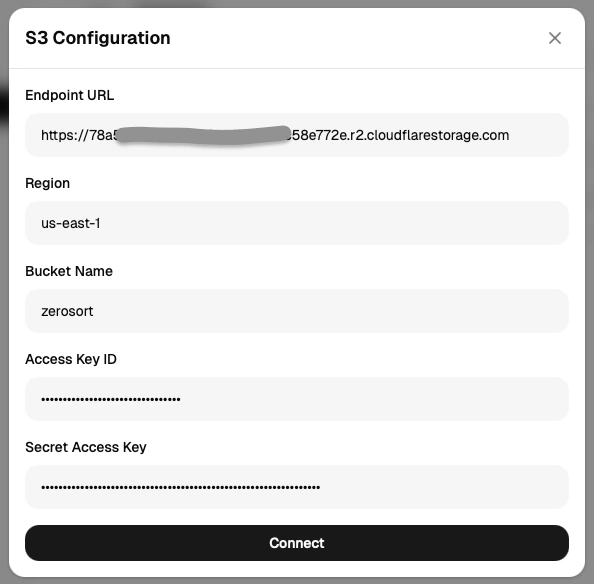
- Open Settings → Cloud Sync.
- Click Connect and fill in your bucket details:
- Endpoint URL (
https://s3.{region}.amazonaws.comfor Amazon S3) - Region
- Bucket name
- Access key and secret key
- Endpoint URL (
- Click connect to save the profile.
Sync Preview
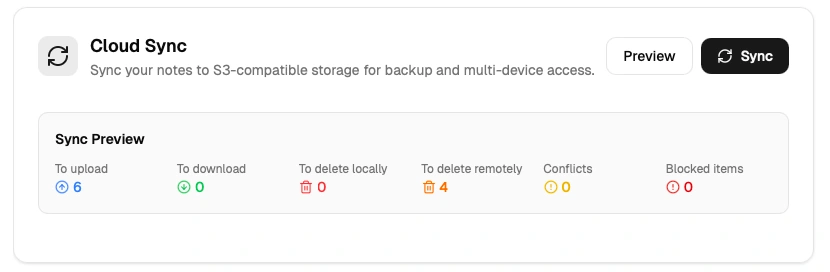
Before any changes are applied, ZeroSort shows a preview of exactly what will happen: which notes will be uploaded, downloaded, or deleted. Review the plan and confirm before proceeding. No changes are made until you approve.
Safety Guards
ZeroSort includes automatic safeguards that block a sync plan if it looks unexpectedly destructive:
- Deletion threshold — sync is blocked if more than 30% of your items would be deleted at once.
- Mass deletion warning — an alert is shown if 10 or more items are targeted for deletion.
- Empty state protection — prevents a sync from wiping all of your data.
If a sync plan is blocked, review the preview, verify your settings, and confirm you understand the changes before overriding.
Encryption Details
All note content (titles, summaries, body text, folder names, and tags) is encrypted before upload. Only IDs and timestamps are stored unencrypted, as they are needed to coordinate sync logic. Your encryption passphrase never leaves your device.
Set your encryption passphrase when creating a sync profile. If you change the passphrase, you will need to run a full re-upload to re-encrypt existing data. (Create a new bucket with a different name).
Concurrency
Adjust the number of parallel operations (1–50) in Settings → Cloud Sync → Sync Concurrency to balance sync speed against your network capacity.