AI Features
How ZeroSort uses AI to automatically organize your notes, generate tags, assist with writing, and create visualizations.ZeroSort integrates AI at every stage of the note-taking workflow — from automatic organization and tag generation when you save a note, to inline writing assistance, to generating charts and diagrams from your content.
Supported Providers
Connect to any of the following AI providers. Switch between them freely in Settings → AI.
| Provider | Notes |
|---|---|
| OpenAI | GPT-5, GPT-5 Mini, o3, and more |
| Anthropic | Claude Sonnet 4.5, Opus 4.5, and more |
| Google Gemini | Gemini 3 Pro, Flash, and more |
| Mistral | Mistral Large, Medium, Ministral, and more |
| DeepSeek | DeepSeek V3, R1, and more |
| Ollama | Runs locally — no internet required |
| OpenRouter | Access many models via a single key |
| Grok | Grok 3, Grok 3 Mini, and more |
| OpenAI-Compatible | Any custom endpoint matching the OpenAI API |
You can configure multiple providers simultaneously and select which one is active for note generation.
Automatic Note Organization
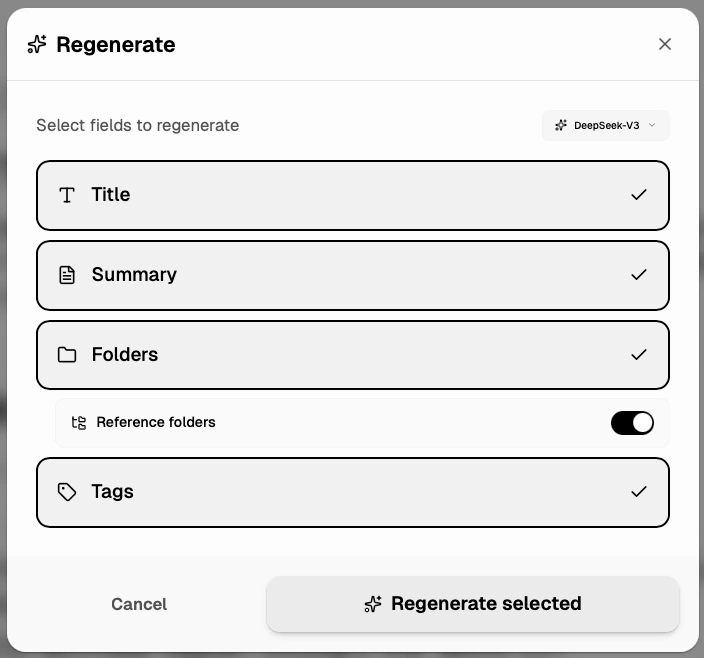
When you write a note and sort, ZeroSort passes the content to your selected AI model and automatically generates:
- Title — a concise title
- Summary — a 2–3 sentence overview of the note
- Folder placement — a hierarchical path such as
Work > Meetings > Q2 Review - Tags — relevant labels that help you group and filter related notes
You can regenerate any AI-generated field individually without touching the others:
- Regenerate the title only
- Regenerate the summary only
- Regenerate the folder placement only
- Regenerate the tags only
Reference folders
The AI takes your existing folder structure into account, so new notes slot into folders you've already created rather than inventing new ones unnecessarily.
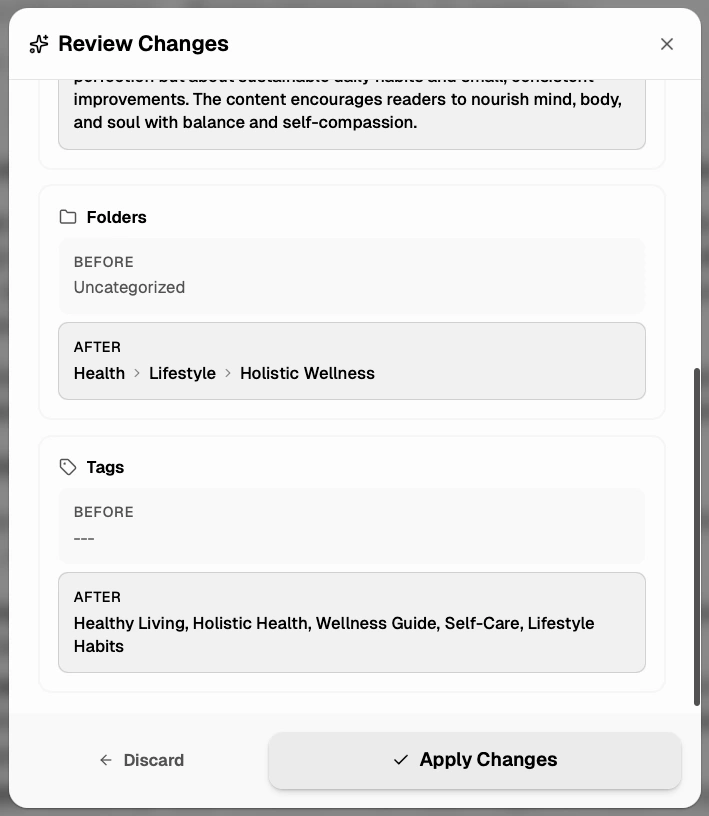
A side-by-side comparison shows the original value and the new AI suggestion before you apply it, so you stay in control.
Batch Regeneration
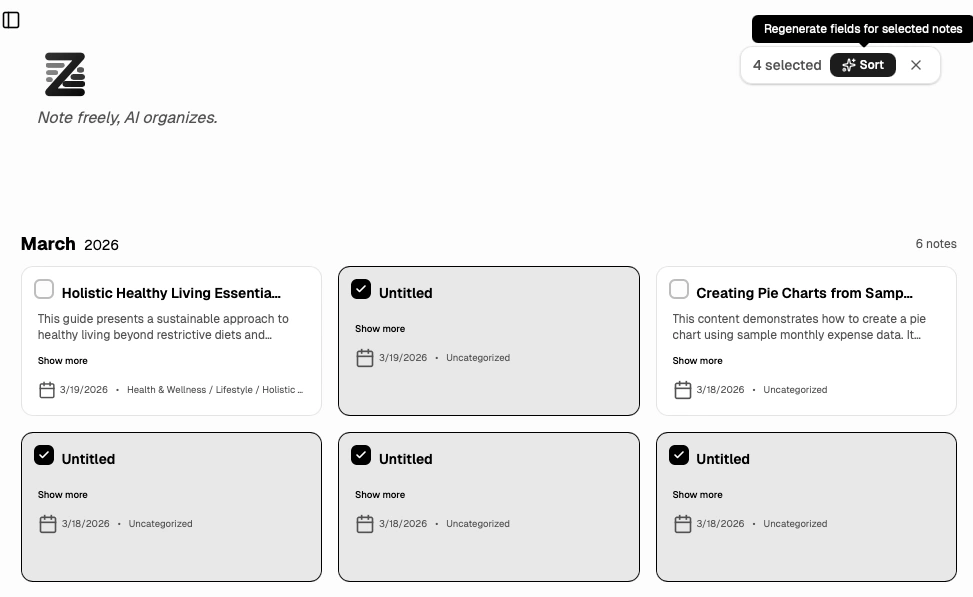
Regenerate AI fields across multiple notes at once from the note list. Select the notes you want to update, choose which fields to regenerate (title, summary, folder, tags).
Two AI Modes
ZeroSort includes two different AI workflows inside the editor:
1. SELECTION
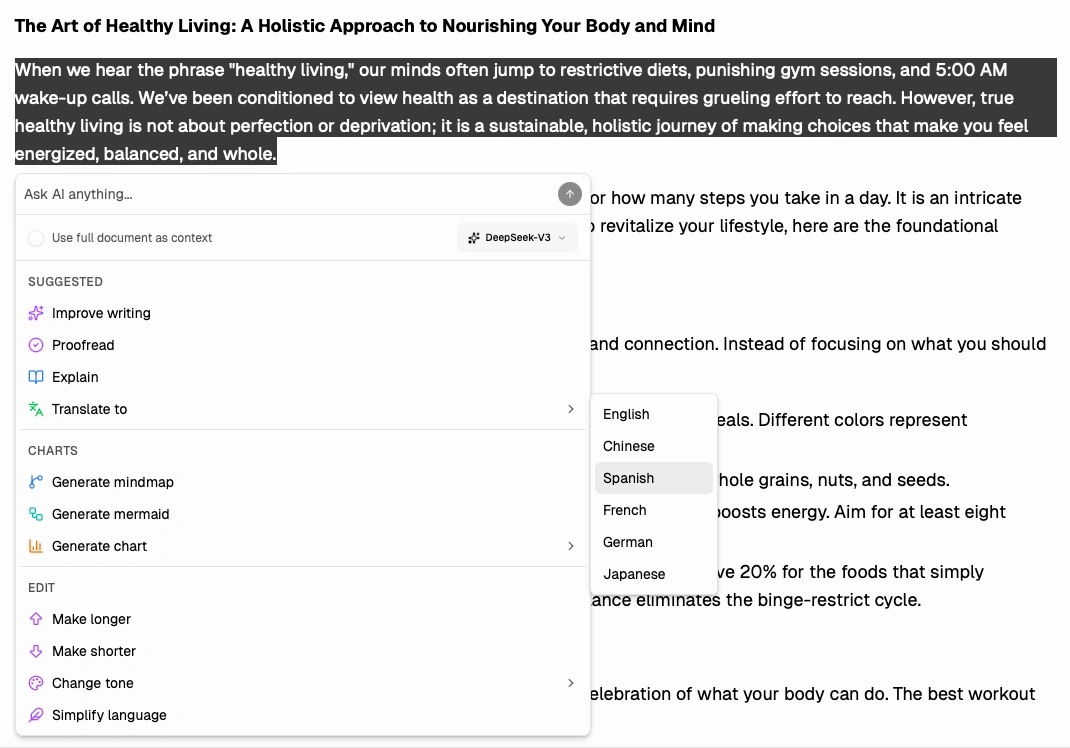
SELECTION: This mode is designed for transforming the text you already highlighted. You can optionally enable Use full document as context so the model considers the rest of the note while rewriting the selected passage.
The following actions are available on the selection:
| Action | What it does |
|---|---|
| Improve | Enhances writing quality and clarity |
| Proofread | Fixes grammar, spelling, and punctuation |
| Explain | Explains the selected text in plain language |
| Translate | Translates to English, Chinese, Spanish, French, German, or Japanese |
| Change Tone | Rewrites in Professional, Casual, Friendly, Confident, or Formal tone |
| Make Longer | Expands the content with more detail and examples |
| Make Shorter | Condenses the text while preserving key ideas |
| Simplify | Rewrites using simpler, more accessible language |
| Generate Mind Map | Converts the text into a visual mind map |
| Generate Mermaid Diagram | Creates a flowchart, sequence diagram, or class diagram |
| Generate Chart | Creates a Line, Bar, Pie, Radar, or Bubble chart |
| Custom Prompt | Applies any instruction you type to the selection |
2. Ask AI
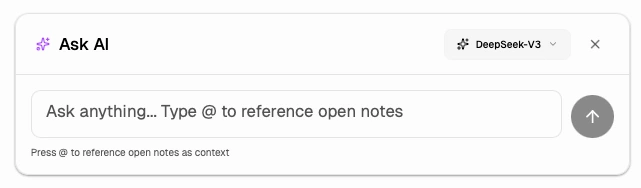
Use the floating Ask AI button in the bottom-right corner of the editor when you want a freeform conversation instead of editing a specific selection.
- Ask open-ended questions about your current writing
- Type
@to reference other open notes as extra context - Generate a response first, then insert it anywhere in the note
This mode is useful for brainstorming, drafting new sections, summarizing multiple open notes, or asking the model to generate content that is not tied to a selected passage.
AI Assistant
The AI Assistant combines both editor workflows:
- SELECTION for rewriting, translating, expanding, simplifying, or visualizing selected text
- Ask AI for open-ended prompting with optional
@note references and insert-anywhere output
AI Chart Generation from Tables
When a table is selected in the editor, the floating table toolbar includes a Generate Chart button. ZeroSort reads the table data, infers the best chart type, and inserts an interactive chart inline.
Configuring AI
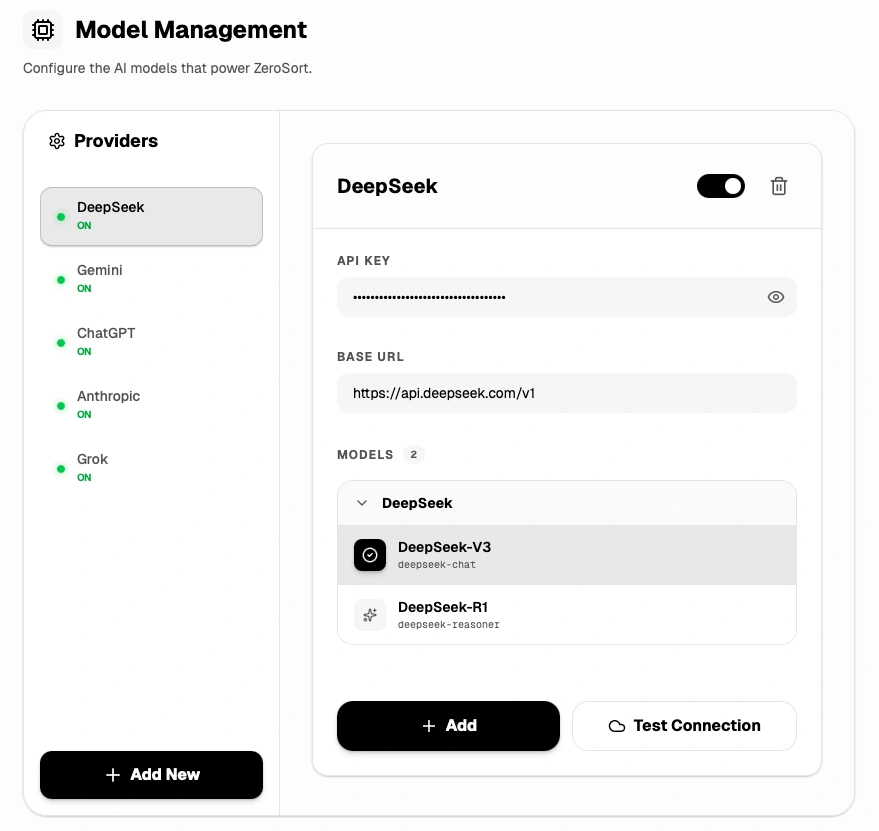
Go to Settings → Model Management to:
- Add and manage providers and API keys
- Select the active model for note generation
- Set custom base URLs for self-hosted or proxied endpoints
- Enable or disable AI features globally
- Test a provider connection before saving